

In this article, you’ll learn:
Having important content open in one click is always a win. And when the goal is to share one specific picture, sending someone a full web page link and hoping they’ll find the right image on it is… not ideal. A direct URL to the image solves that. People click once and land on the exact file they need, right away, in a regular browser.
Creating URLs for images also has other uses. For your website, you can create a URL that makes an image an anchor to redirect visitors to other sections, provide more context to graphic elements, or offer high-resolution photos for download.
So, how do you create a URL for an image? In this article, we’ll explain how to get a URL link using specialized services, content management systems, and digital asset management (DAM) systems.
Why Do You Need a Link to an Image
The simple reason: it makes sharing faster and less annoying. Sending the same image over email or in messengers again and again is inefficient. But if you know how to create a URL link for an image, you only upload it once and then reuse the link whenever someone asks. Drop it into a work chat, a document, a ticket, or any other place where the team communicates — and you’re done.
Now, if the image is already published somewhere online, it might feel like you can just share the page it’s on. Technically, yes. But it’s still not the best option. The person has to open the page, wait for everything to load, scroll, locate the right image, and then download it manually — and that’s only if the admin hasn’t restricted access or blocked downloads. It’s extra steps, extra waiting, and extra friction. That’s why it’s smarter to learn how to create a public URL for an image and skip the whole “find it on the page” routine.
F.e., by adding image URLs directly into an ad server’s campaign dashboard, teams can show visuals in online ads automatically — without uploading the same file in multiple places.
How to Create a URL for an Image
Sharing becomes much easier when you have a direct link. Instead of attaching the file in an email or sending it as a heavy messenger upload, you just send the URL. Whoever receives it can open the image instantly in their browser — no downloading a bunch of extras, no searching around.
If you work with a website, image URLs are useful for more than “quick sharing.” They’re part of how websites function. This process, often supported by automation testing services, helps ensure everything works smoothly end to end. With an image URL, you can make the picture clickable (so it leads people to another page), or you can point users to a high-resolution version so they can download it without hunting for the original. In this guide, we’ll walk through a few ways to create an image URL using different tools.
Services for Professionals

500px
A specialized service for sharing photos and unique images. Its advantages include:
- Possibility to create portfolios and collections for business projects;
- A system of royalty payments from the use of photos for commercial purposes;
- Advanced analytics system for evaluating the effectiveness of each digital asset;
- AI-based smart search for image selection using metadata and image characteristics.
By registering on the site, you can upload 21 images per month for free by creating links to them. If you need more digital assets, you will need to upgrade to a professional subscription starting at $2.99 per month.

SmugMug
A service for photographers that allows you to share high-resolution images with customers or sell them online. Its advantages include:
- cloud storage with no limitations on file size;
- flexible access rights settings;
- the possibility of creating watermarked images for previewing;
- support for RAW files.
SmugMug offers a 14-day trial without the need to connect a bank card. The cost of an account for creating a portfolio starts from $38 per month, and for selling photos — from $55 per month.

Pics.io Digital Asset Management (DAM) System
Pics.io is a platform for storing, organizing, and managing files in multiple formats. It also gives you a convenient way to share files when you need to send something out. Once you open an image in Pics.io DAM, you can create a URL link for sharing or embedding it on web pages.
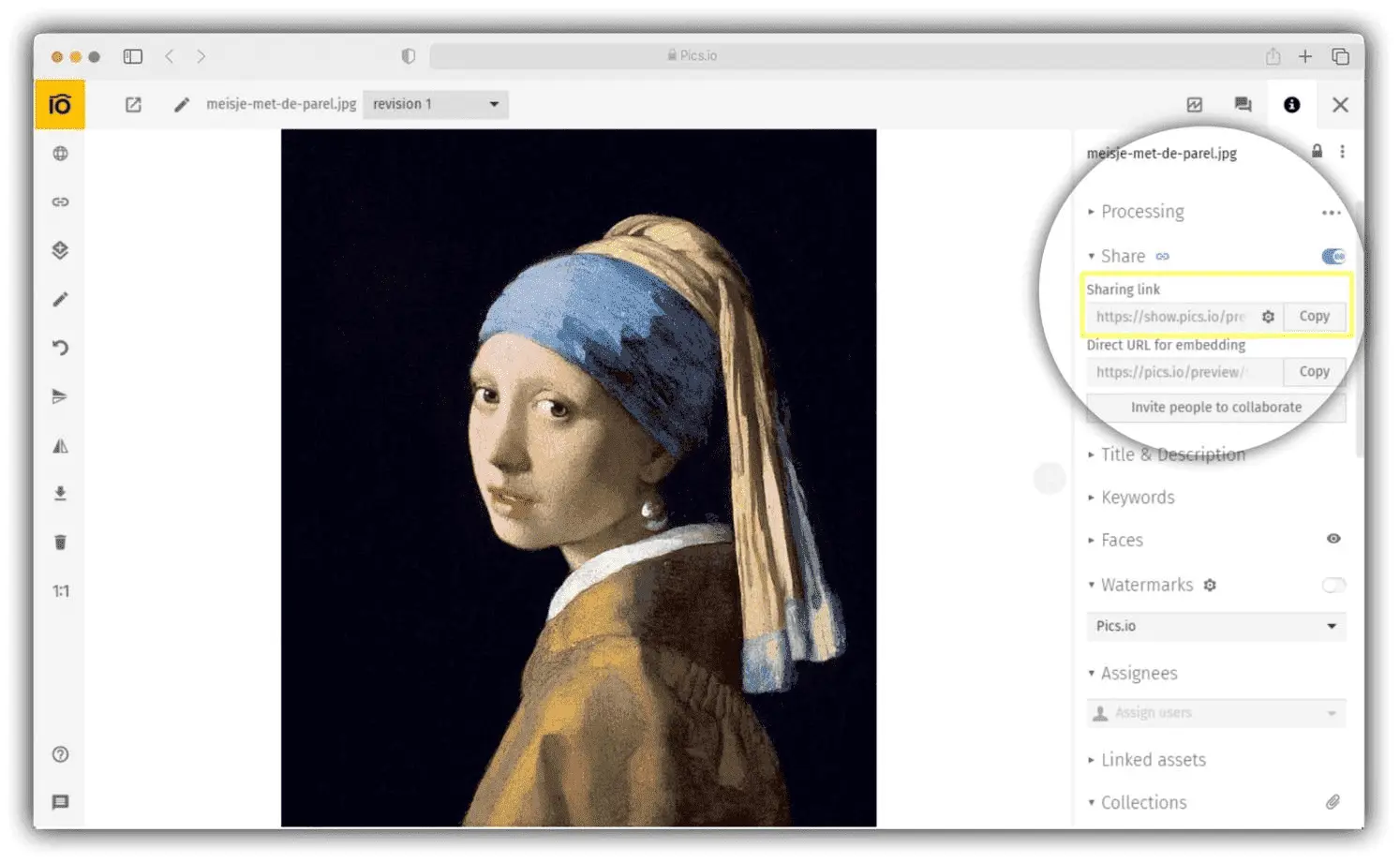
After deciding to share image via link, you can set the following rules for its use in the settings section
- Limit the time of access to the file by setting an expiration date;
- Allow or prohibit the download of a digital asset;
- Allow or block viewing of previous versions of the image;
- Allow or prohibit commenting;
- Open or block access to metadata and previews;
- Set a password for protection;
- Demonstrate the terms of use of a digital asset before each opening.
To use this feature and share single files, you will need a Pics.io account. You can also take advantage of a 7-day trial with no credit card required.
For Personal Use

Imgur
If you’re thinking, “How do I create a URL for an image for free?” — this tool is worth saving. The workflow is basically as simple as it gets: click the New Post button, drag and drop your image into the upload window, and you’ll receive a link. If you want access to your upload history later, you’ll need to register — but registration is free too. Imgur only charges you for using the API to automate this process — from $160 to $1,000 per month, depending on the number of images.

Flickr
It's another service with free access. However, you will have to register to post photos there. Once you have an account, you can add images by dragging them into your browser window or by clicking the Upload button. Flickr also has a professional account option that starts at $9.49 per month.
It provides the following advantages:
- Customizable access rights to each image;
- Image usage analytics;
- Automatic synchronization with folders in local or cloud storage.

PostImage
It is one of the simplest services to create a URL for an image free of charge. Its advantages include:
- the possibility of preserving the original size or changing the resolution;
- setting time limits for access to digital assets;
- the function of downloading images via URL;
- plug-ins for websites.
The PostImage service does not have a paid version, but its interface has advertising banners.
How to Get the URL of an Image Posted on a Website
If you see an image in a blog post, on social media, or on any other site, you can usually share it as a link instead of sending the file. Here’s how:
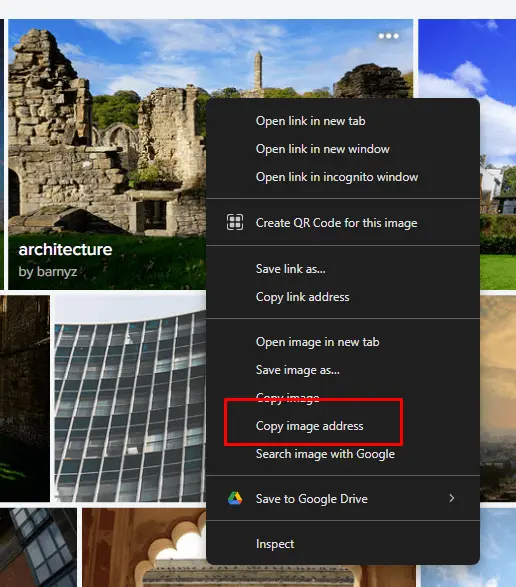
On Your Computer
- Open the website and locate the image you want to share. Hover your cursor over it and right-click. Choose Copy Image Address.
- Now you have the link. Paste it wherever you need using a normal method — for example, right-click and select Paste, or use Ctrl+V.
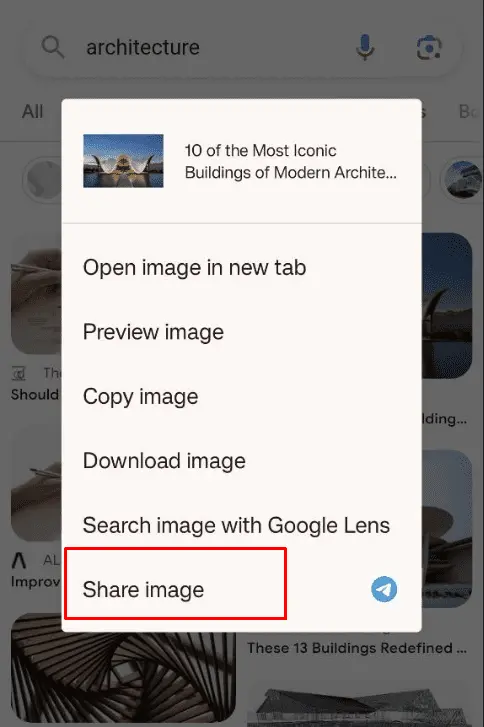
On Your Smartphone
- Open the site and find the image.
- Click on it with your finger and hold for a few seconds.
- Select Share Image.
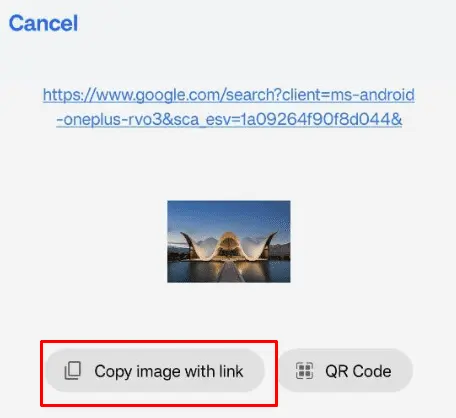
- In the new window that opens, click Copy image with link to get the URL.
- Paste the link — activate the text input line, press with your finger, hold for a few seconds, and select Paste.
How to Add a Link to an Image with a CMS
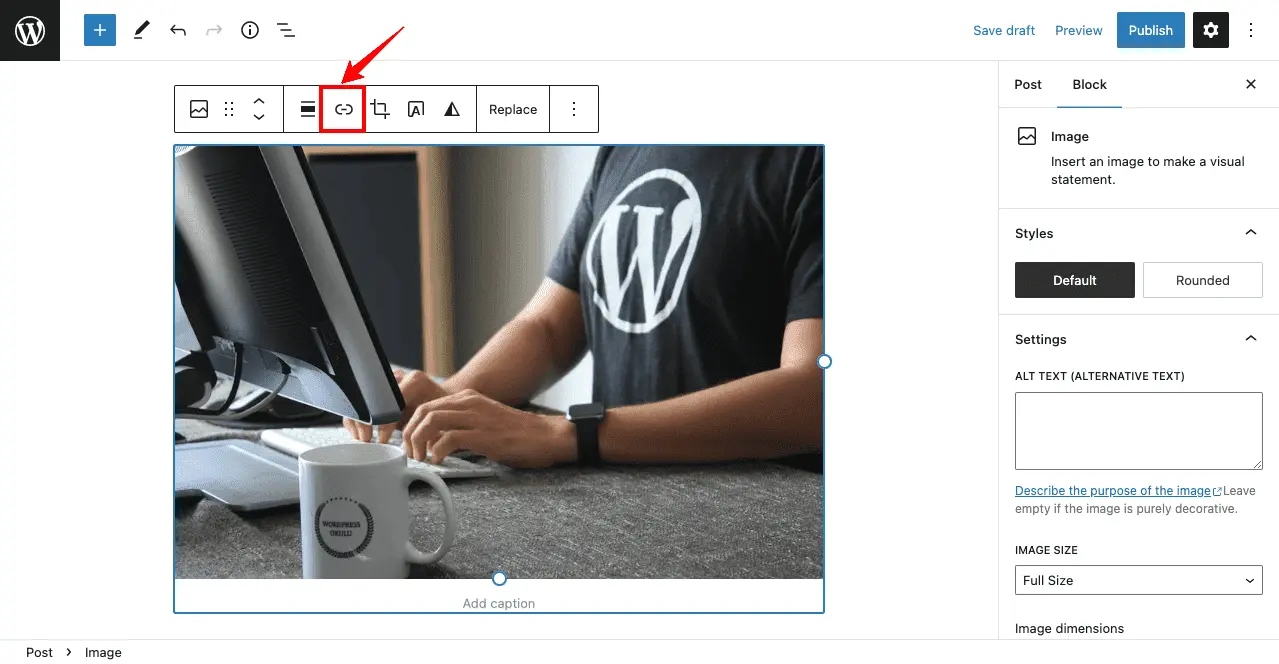
If you want an image on your website to act like an anchor (click it → go to another page), you might be asking: “How do I create a URL for an image?” The good news is you don’t need to learn HTML or write code just to do this basic setup. In WordPress, the editor already supports it.
- After you have added an image, click on it in the edit mode. Select the Link menu item — click the button with the link in the chain above the image.
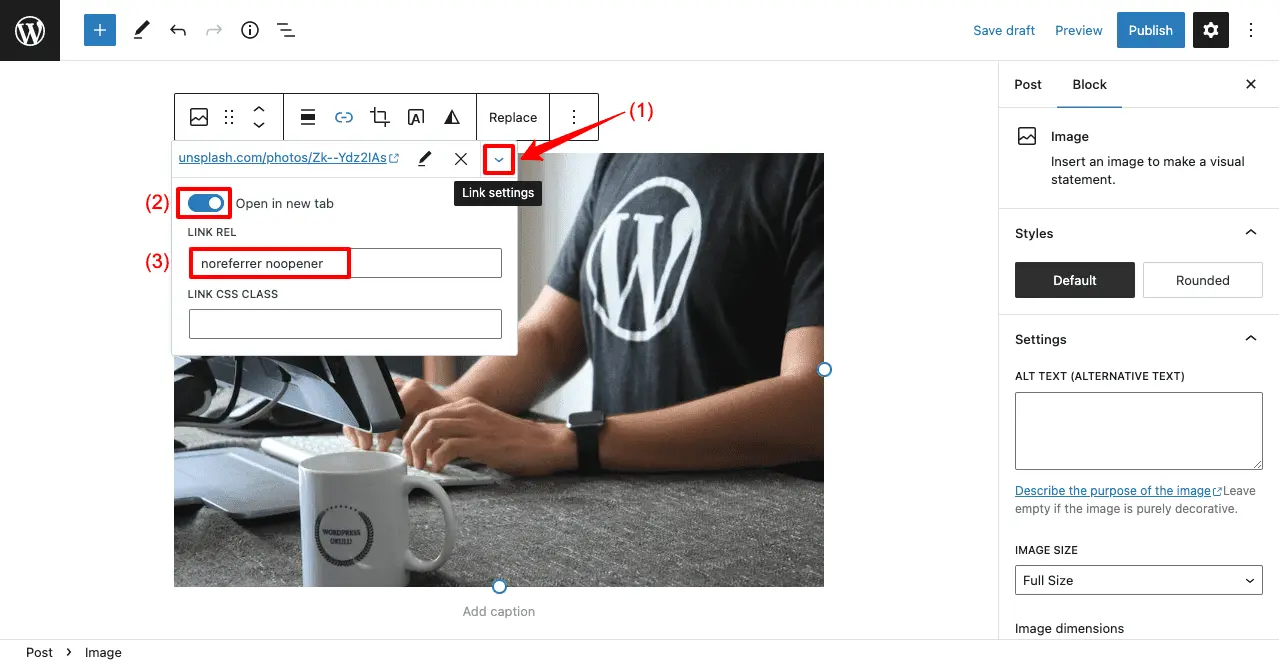
- Enter the link or title of the article on your WordPress site.
- By clicking the arrow button, you can also add link settings and CSS styles.
Conclusion
Once you know how do you create a URL for an image, you can easily share it, giving other users access to a specific file without any extra details. There are various tools available for uploading images, both professional services and platforms for personal use. One of the options is to use the digital asset management system Pics.io. It allows you to get links for sharing single and multiple images at once, set up access rights, download restrictions, protect files with a password, etc.
Did you enjoy this article? Give Pics.io a try — or book a demo with us, and we'll be happy to answer any of your questions.


